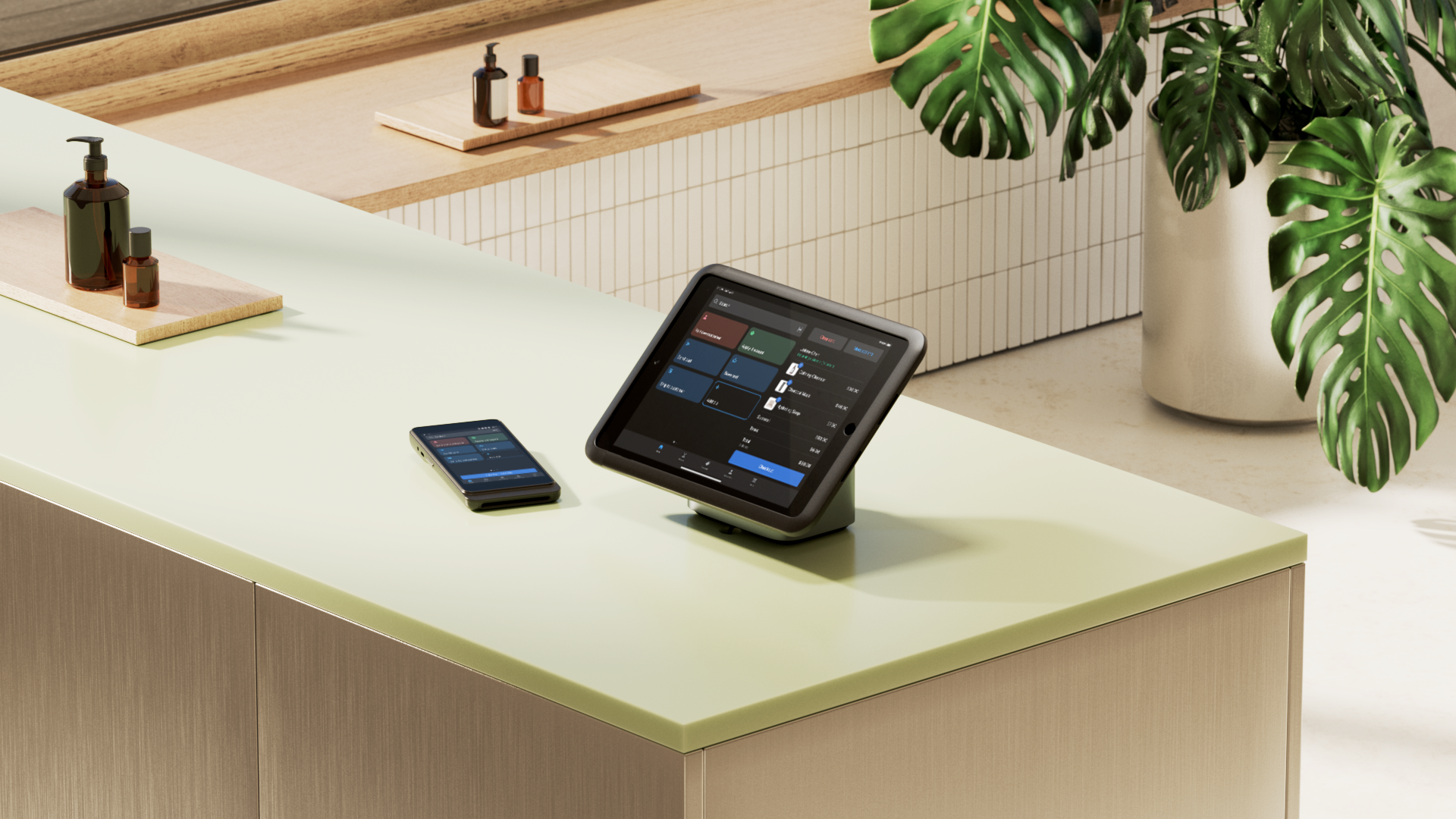

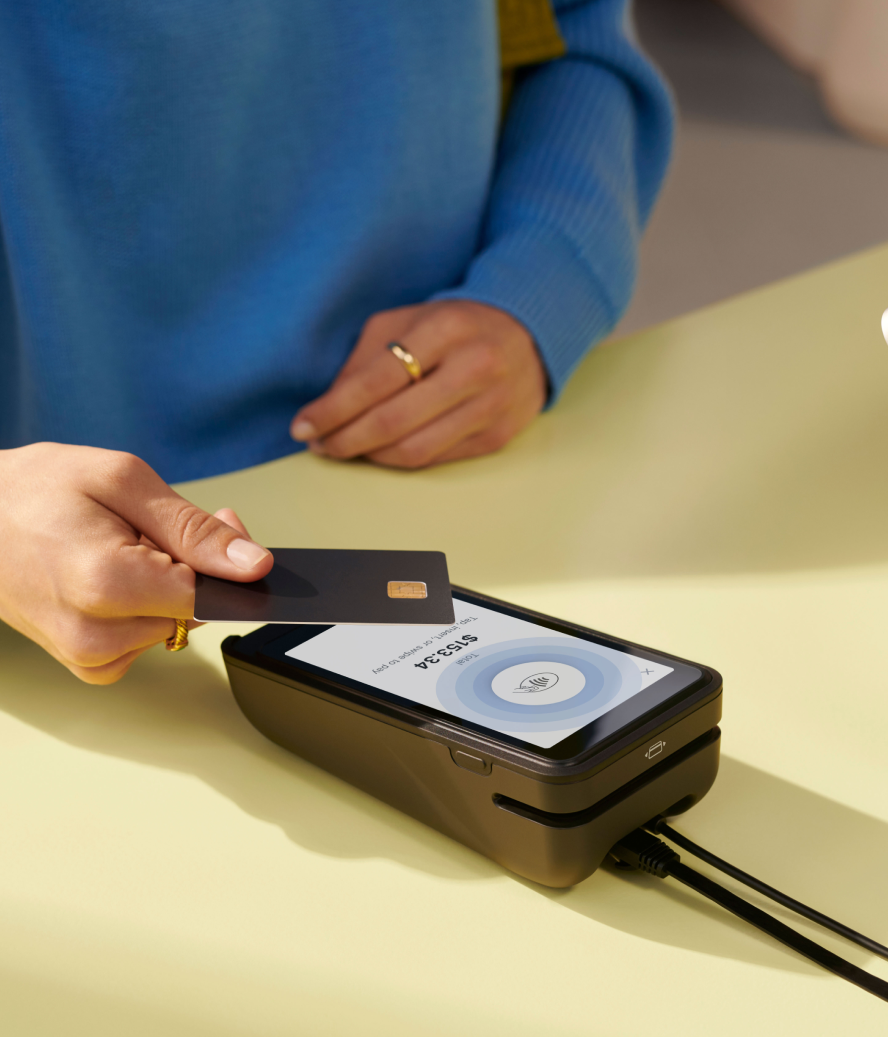

Shopify is always evolving, with new features and updates rolling out regularly to help retailers stay ahead—but keeping up shouldn't be a chore. That's why this hub tracks every POS update and relevant Shopify changes in one place.
Every two weeks, Shopify releases an updated POS version and this post is refreshed to highlight what's new. If you have multiple retail locations, it's best practice to use an MDM (Mobile Device Management) to manage app versions, and to test each new release on a few devices before rolling it out to all stores. To see previous months' updates, scroll to the bottom of this post.
Updates in POS version 11.16
Updates in POS version 11.16 (September 28, 2026 release date)
Enable staff to create local delivery orders in POS

What changed: Shopify POS now lets staff create local delivery orders using Shopify’s native delivery and fulfillment setup, without relying on notes, tags, or other workarounds. Staff can add items to cart, choose local delivery at checkout, and create the order using the same delivery primitives merchants already manage in Shopify.
Why it matters: This gives staff a cleaner way to handle delivery sales from the store when a shopper wants items brought to a nearby address instead of taken home. It reduces manual workarounds, helps teams avoid missed handoffs, and makes local delivery easier to manage during busy in-store moments.
Access: Requires POS Pro. Available in POS v11.16, but requires setup to enable. Follow the steps in Settings > Checkout > Local delivery.
Learn more about local delivery
Perform scheduled stock counts in POS

What changed: Shopify POS now lets staff complete stock counts that were created in admin for their location and submit the results for review. Staff can work from a scheduled count in POS instead of running a separate manual count process, helping keep count work tied to the original task.
Why it matters: This makes planned count days easier to run on the sales floor or in the stockroom, especially when multiple staff are involved. Teams get a clearer process for counting what’s on hand, reducing side conversations, duplicate work, and mistakes during routine inventory checks.
Access: Requires POS Pro. Available in POS v11.16, but requires staff permissions to access. Admins can manage this setting under Settings > Users.
Learn more about inventory counts
Filter POS search by resource
What changed: POS search now gives merchants more control by letting staff narrow global search to a specific resource and use filters to refine results. Instead of searching across everything at once, staff can focus on the type of record they need, such as products, orders, or customers, and get to the right result faster.
Why it matters: This helps during high-traffic moments when staff need a quick answer at the counter and don’t have time to scan through mixed results. It can speed up common tasks like finding the right customer, locating an order for pickup, or checking product details without unnecessary back-and-forth.
Access: Automatically available in POS v11.16. No action required.
Get approval when setting up a new POS device
What changed: Staff without the POS device setup role are now guided to request approval from a nearby signed-in device, whether they connect over Bluetooth or scan a device activation QR code.
Why it matters: This gives staff a clearer path to complete device login without restarting the flow or tracking down account credentials.
Access: Automatically available in POS v11.16. For Bluetooth approval, a logged-in POS device nearby detects the new device. A staff member with the POS Device Setup permission taps approve and enters their PIN. If Bluetooth isn’t available, scan the QR code shown on the new device with a logged-in device. Victa Mobile supports QR-code approval only.
Learn more about Nearby device log in
Updates in POS version 11.15 (September 14, 2026 release date)
Keep the cart in view on mobile

What changed: Shopify POS on mobile now keeps the cart persistently visible, so staff get immediate confirmation when items are added and can keep track of the current sale without switching to a separate cart tab. This replaces the more hidden cart-tab pattern with an always-visible cart presence during mobile selling.
Why it matters: When staff are selling away from the counter—on the floor, in line-busting moments, or during events—they need to know at a glance that the right items were added before moving on to the next customer interaction. A persistent cart reduces second-guessing, cuts extra taps, and helps mobile checkout feel smoother in fast-moving selling environments.
Access: Automatically available in POS v11.15. No action required.
See past updates
August 2026 (V11.12, V11.13 & V11.14)